

Countdown and marathon timers for OBS
Countdowns, stopwatches and a marathon timer that donations, channel points and subscriptions add time to. Every timer is its own overlay with its own look, and a Control Panel tile runs them mid-stream.
Free — like everything that runs on your own PC.
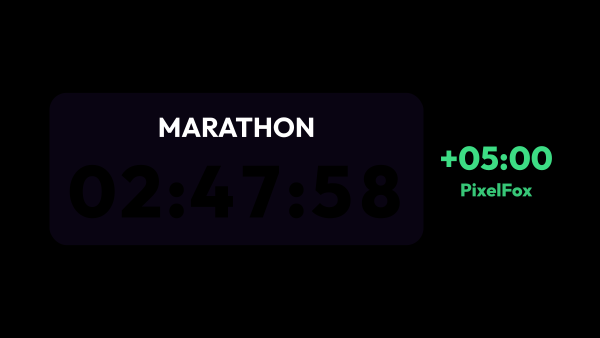
Every kind of stream timer
A timer counts down a set time, counts down to a date and time, or counts up from a moment. As many timers as you need, each with its own OBS link.
- «Starting soon»: a countdown to the time the stream starts.
- «Live for»: a count-up from the stream start that begins again with every new stream.
- «Since the last donation»: a count-up that starts over with each donation.
- A five-minute challenge started with a button or by a scenario.
- A start at a date and time counts from that moment even if the app was opened later, so a marathon set for noon still ends on time.
- The time lives in the app, not in the browser source: reloading the source or restarting OBS loses nothing.
A marathon that viewers extend
A countdown can run a subathon: viewers add time with donations and can take it away again, at a price you set.
- A donation with your plus word adds time, one with your minus word takes it away. The words are yours, and they count anywhere in the message, in any letter case.
- The price is in your base currency per minute or per hour, and part of the price buys part of the time.
- Taking time away can be switched off, cost the same as adding, or have its own price.
- A donation with no word, or with both words, waits for your decision instead of being guessed.
- Channel points rewards add or take away their own minutes, and subscriptions add minutes by tier, gifted ones included.
- An upper limit stops adding at that much time left, and a donation you delete in Statistics gives its time back.
Run it from the Control Panel
The Timers: Control tile keeps the timers that are on air in OBS at the top, large, and the rest below.
- Start, pause and reset for a stopwatch or a set-length countdown; reset asks for a second press, because one press would wipe a whole marathon.
- A count-up from a date and a countdown to a date show their date with a pencil, to pick a new day and time right in the tile.
- Add or take away any number of minutes, or switch the field to money and add time for an amount, counted at the price of that timer, just like a donation.
- Donations that wait for your decision come with the nick, the amount and the message, and three buttons: add, take away, do not count.
- A feed shows who changed the time, by how much and where it came from.
- Each tile has its own settings, so one tile can follow the marathon and another all timers.
What happens at zero
A countdown can stop at 0:00 or keep going below zero, and zero can set other things off.
- In Scenarios, the Timer reached zero trigger plays a sound, switches the OBS scene or runs any other step.
- The Timer step starts, pauses, resets, adds or takes away time, so a hotkey or a panel button can drive a stopwatch or a set-length countdown.
- Pause while you are offline holds the timer if the stream drops and goes on when you are back.
Making it look like yours
A timer sits on screen for hours, so it has to match the scene.
- A caption above, below or beside the digits: «STREAM TIME:», «TIME LEFT», or nothing at all.
- Backdrop, digits and caption are styled separately: fonts, sizes, colours, shadows, corner radius.
- Every digit sits in a cell as wide as the widest digit of your font, so the timer does not shift sideways every second.
- Added time can float up next to the digits as «+2:30», with the name of the viewer who added it.
- Fifteen ready-made looks to start from: Neon, Minimal, Retro and twelve materials that draw the backdrop behind the digits, from Live pencil to Frosted glass.
- An outline effect runs around the timer all the time or flashes whenever time is added or taken away, so a marathon donation shows on the timer itself.
What it is not
The timer counts time; it never handles money.
- Viewers pay through your donation service exactly as before. strAImer reads the donation and changes the time.
- Donations that arrived while the app was closed do not change the time: the app did not see them.
- Kick subscriptions do not add time: Kick sends the app only rewards and chat.
What it is made of
Each part is a separate module: you install only the ones you need, and any of them can be removed without breaking the rest.
Getting started
- Install the Timers bundle from Module Catalog → Add-ons.
- Open Widgets → Timers, create a timer and choose what it counts and when it starts.
- Copy its link from the list and add a browser source in OBS.
- Put the Timers: Control tile on the Control Panel to run it mid-stream.
OBS on a second computer? Turn on «Access from your local network» in Settings → Core — the overlay link already carries this machine’s address, so nothing has to be copied again.
Works together with
Get strAImer
Everything on this page runs on your own computer — free, no account, nothing to connect.
Missing something here? Ask for it on the ideas board — votes show what people need most. Propose an idea