

Stream auction: bidding, wheel and tournament
Viewers bid on what you do next — with donations, channel points or a button you press yourself. The winner is decided by a weighted wheel, by elimination or by a tournament bracket, and the board keeps the running leader for the evenings you would rather not spin at all.
Free — like everything that runs on your own PC.
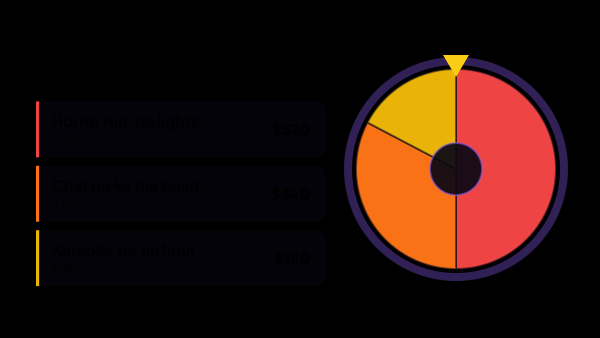
- 1 Horror run, no lights — —
- 2 Chat picks the build — —
- 3 Karaoke for an hour — —
Winner
How the bidding works
A lot is something you might do: a horror run with the lights off, chat picking your build, an hour of karaoke. Viewers put money and points behind the one they want, and the totals decide the outcome.
- Donations from any connected service raise the lot named in the message, and you tick which of those services count.
- Twitch channel points count too — you choose which rewards take part, and an unmarked reward is ignored instead of dragging random redemptions into the auction.
- A bid finds its lot by number, by the exact name, or by the name written anywhere in the message — “3” is enough for a viewer in a hurry.
- Switch on Accept everything and a bid that matches no lot opens a new one, named after the message, or after the viewer when there was no message. Chat writes the list itself.
- A minimum keeps small change out, and a multiplier for each source decides what a channel point weighs against a unit of money.
- You can add a bid yourself from the control panel, for the times someone paid outside the app.
- A bid the engine could not place — the lot was misspelled, or not named at all — goes into a disputed queue rather than being lost.
Three ways to pick a winner, or none
The mode changes what the money buys, and that changes how chat behaves. Pick the one that fits the evening.
- Normal — money buys a bigger sector, and the spin decides. A small bid still has a chance, which keeps quiet viewers in the game.
- Elimination — the wheel spins the losers out one at a time, so the tension lasts several rounds instead of one.
- Tournament — lots are played off up a bracket, and you set how many go into one match. The lightest totals are drawn against each other first, and the winner carries the whole pot up the tree.
- Or no spin at all — the board keeps the running leader, and on some evenings the largest total is the whole point.
- A series that has started survives a restart of the app: an elimination or a bracket picks up where the stream left it.
The clock is part of the game
A deadline turns a list of lots into a race, and an auction is usually stolen in the last ten seconds.
- Set a length, or run with no deadline at all — bids are collected until you stop them.
- Every accepted bid can push the clock: a fixed number of seconds per bid, or seconds for each step of the amount in your base currency.
- Anti-snipe rewinds the timer when a bid lands near the end, and the auction closes only after that window goes by with nobody answering.
- Start, stop and a minute either way live on the panel tile — and a bid that arrives while bidding is stopped waits in the queue instead of moving the totals.
Not a wheel that already knows the answer
The draw happens in front of the people who paid for it, so it has to be honest in a way they can watch, not merely claimed on a settings page.
- The engine throws an angle, not a name: whichever sector lands under the arrow wins, and the wheel really can stop a hair from a border.
- A sector is worked out from the totals and nothing else. Money buys a bigger sector in the normal mode; in elimination a bigger total shrinks it, because there the sector is the risk of going out.
- Every spin is independent — pressing again gives a new result, and there is no stored seed that would replay the old one.
- In a tournament the winner rises with the whole pot, so a lot ends up with the same chance it would have had on one plain wheel.
What the viewers see
The engine itself draws nothing. Three overlays go into OBS as browser sources, and you use the ones you need — a lot keeps the same colour in all of them.
- The board: the countdown and the leaderboard of lots, updated the moment a bid lands.
- The wheel: the spin itself, where the size of a sector is the odds, so chat can read the race before it starts.
- While bids are being collected, the wheel can be hidden from the stream with one button on the control panel, without touching OBS, and Spin brings it back before spinning.
- The bracket: the tournament tree, focused by itself on the match being played, or held where you framed it by hand on the Auction: Bracket tile.
- Rules or conditions you write once sit on the board, so a viewer who arrived a minute ago knows what is being sold.
- Every overlay is restyled inside the app (fonts, colours, borders, the winner plate), and the source in OBS repaints without being touched. The board and the plaque under the wheel can also take any of twelve themes under Material: each lot keeps its colour in the theme's trim, and an effect can run around them all the time or flash when a lot is drawn.
- Every board, wheel and bracket in its list has an On air switch that takes just that screen off the stream, while the auction keeps taking bids and spinning; a wheel switched off stays hidden even when you press Spin. To stop the auction itself, use the power button on the Auction: Control tile.
What you see while playing
Five tiles for the control panel, so the auction is run in one window instead of a page you have to alt-tab to.
- Auction: Control — status, timer, summary and the buttons that start and stop the bidding, and spin the draw.
- Auction: Lots — wheel colours and chances, drag to reorder, names and amounts edited in place.
- Auction: Disputed bids — assign a stray bid to a lot in one click, with the viewer’s message shown as it came, or clear the whole queue after an evening that had no auction in it.
- Auction: Wheel and Auction: Bracket — the same wheel and the same tree the stream sees, without switching to the OBS preview.
- A set of lots saved as a template comes back next stream from the Auction: Control tile, and the power button there stops the auction taking bids at all.
Corrections that do not lose money
Mid-stream mistakes are the normal case, so undoing them is built in rather than bolted on.
- Deleting a lot says how many bids and how much money go with it before it happens.
- Dragging one lot onto another merges them — the bids move instead of disappearing.
- A rejected channel point bid can return the points to the viewer, when Twitch allows it for that reward.
- A single bid can be voided and brought back, or deleted outright — and either way the log keeps what was done and who did it.
- A correction made by hand survives the next incoming bid.
What it is made of
Each part is a separate module: you install only the ones you need, and any of them can be removed without breaking the rest.
Getting started
- Open Auction → Auction and write down the lots — a name each, and a starting amount if you want one.
- In Auction → Settings pick which donation services count, which channel point rewards take part, and how the clock behaves.
- Copy the links from Auction → Board overlay and Auction → Wheel overlay and add them in OBS as browser sources.
- Choose the mode on Auction → Wheel: normal, elimination or tournament.
- Put the Auction: Control tile on the control panel and run the evening from there.
- Press Start on that tile, then send a test bid from Auction → Settings before anyone is watching — a test bid is only accepted while the bidding is running.
The wheel on the auction page, the tile on the panel and the overlay in OBS are one and the same wheel. Style it once and it looks the same in all three places.
Works together with
Get strAImer
Everything on this page runs on your own computer — free, no account, nothing to connect.
Missing something here? Ask for it on the ideas board — votes show what people need most. Propose an idea