

YouTube Live: chat, Super Chat and memberships
Connects the live chat of the broadcast that is running right now: messages, Super Chats and new memberships arrive alongside every other platform, and the app can answer and moderate.
Free — like everything that runs on your own PC.
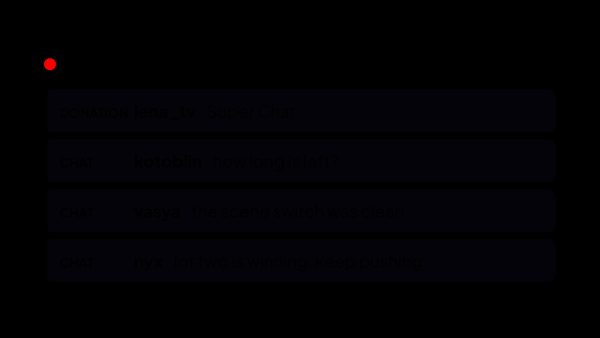
What arrives from YouTube
Each of these arrives as an ordinary event, so alerts, fundraising goals, the auction, voice over and statistics treat it exactly the way they treat Twitch.
- Live chat of the current broadcast, in the shared feed with Twitch and Kick — channel emotes included, as pictures rather than codes.
- Super Chats and super stickers arrive as donations. The amount comes as a line the way YouTube prints it, and the app recognises the currency and converts it into your base one.
- Channel memberships, including gifted ones and each person who received a gift.
- The viewer count of the broadcast, its title and when it started — for the panel tiles and for statistics.
What the app can do
The connection is not read-only. Writing splits in two, and the split is YouTube’s doing rather than ours.
- Write in chat as your channel — what you type by hand goes out under your own name.
- Commands, timed messages and the AI co-host answer from a separate bot account. On YouTube the bot is required for them: writing through the official interface spends a daily allowance shared by everyone using strAImer, while the bot writes the way a person does and spends none of it.
- Delete a message, time a viewer out or ban them without opening YouTube. Give the bot moderator rights on your channel and it does this the same way, without touching the allowance either; without them the app falls back to the official one.
What happens without you
Nothing to paste, nothing to look up: the broadcast is found by the app, not entered by you.
- It finds the stream running on your channel by itself — there is no link and no id to copy from anywhere.
- If there is no stream yet, it waits and connects the moment one starts.
- It holds the connection through a long broadcast: access renews in the background, and chat is picked up again after a network drop. If the sign-in itself ever falls off, the status says so and the same button restores it.
- While a stream is on, the status turns Connected once YouTube has answered the first chat request; until then it reads Connecting..., and Error if the chat could not start. Between streams, Connected means you are signed in and the app is waiting for the next one.
What YouTube decides, not us
These come from YouTube and Google, and each of them looks like breakage until someone explains it.
- Only a live broadcast is read. Ordinary videos, premieres and an announcement created in advance have chat, but this is not it — the app waits for the stream to actually start.
- A public broadcast is picked up within about a minute. An unlisted one takes longer, because the free way of finding a stream sees only what is on your channel page: for it the app falls back to an official request on its own schedule, which starts at a minute and stretches to half an hour while nothing is live.
- A timeout cannot be lifted: YouTube refuses the request, and the mute runs out on its own. A ban is lifted normally.
- Membership tiers and the month count never reach chat at all, so the app records the plain fact of a membership instead of inventing a level for it.
What happens to the access
YouTube asks for wide permissions, so it is worth saying exactly what each is for.
- Reading the channel and its broadcast — without it the app cannot find the chat of your stream.
- Reading and writing live chat — that is the chat overlay, the commands, the replies and moderation.
- Both are required, and Google shows them as separate checkboxes you can untick. With one missing the app refuses the sign-in instead of connecting halfway: a connection that looks fine and never finds a stream is worse than an honest refusal.
- Authorization happens on Google’s own page, and the token is encrypted with your operating system’s key store. It never leaves your computer, and pasting tokens by hand was deliberately removed: you should not have to know where a Google token comes from.
Where it all shows up
YouTube gets no separate screen — it lands in the places the other platforms already use.
- The chat overlay in OBS, where a YouTube message sits next to a Twitch one with the platform icon on it.
- The Stream: Chat tile on the control panel, which puts every platform in one feed and keeps the moderation buttons on each message; the Stream: Events tile lists Super Chats and memberships the same way.
- Alerts, fundraising goals, the auction and voice over, which count a Super Chat the same way they count a donation from anywhere else.
What it is made of
Each part is a separate module: you install only the ones you need, and any of them can be removed without breaking the rest.
Getting started
- Open Connections → Channels and press connect on the YouTube card.
- Sign in to the channel’s Google account and allow access, leaving both permissions ticked.
- Connect a second account for the bot in Connections → Bots — commands, timed messages and the AI co-host need it, and moderator rights on your channel let it clean up chat as well.
- Start the broadcast — the chat is picked up automatically.
The bot exists because of the shared allowance, not because of us: an ordinary second YouTube account writes the way a person on the site does and spends none of it. Making one takes five minutes, and your own channel stays out of it.
Works together with
Get strAImer
Everything on this page runs on your own computer — free, no account, nothing to connect.
Missing something here? Ask for it on the ideas board — votes show what people need most. Propose an idea