

Donation goal bars for OBS
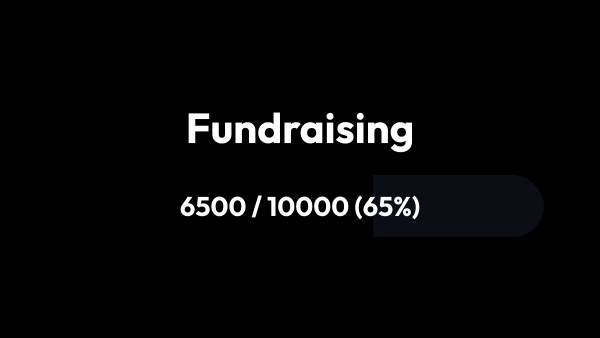
Progress bars that fill themselves as donations arrive: the goal, the amount collected and how far there is left to go — visible without you having to say it every twenty minutes. Run several at once and pause any of them mid-stream.
Free — like everything that runs on your own PC.
It counts by itself
Donations from every connected service are added the moment they arrive, converted into your base currency first.
- Nothing to type mid-stream, and nothing to correct afterwards.
- By default, money from every donation service you have connected counts towards the same bar, and so do YouTube Super Chats.
- One list of checkboxes decides which sources count at all, and it belongs to the module rather than to a single goal: untick Twitch bits and they stop counting in every goal at once.
- A donation that gets revoked is taken back off the bar.
- The current amount can still be set by hand — for a goal carried over from a previous stream, or for money that came in outside the app.
- Reset takes the same goal back to zero and keeps its title, its design and its link: rent gets collected every month, and a fresh goal would mean setting all of that up again.
More than one goal at a time
A stream rarely has exactly one thing worth collecting for. Each goal is its own overlay with its own target, its own look and its own link for OBS.
- A general goal on screen all the time, a goal for tonight only, and a quiet one that keeps counting while its source stays hidden in OBS.
- Pause stops a goal counting and leaves the amount where it is; resume picks it up from there.
- The switch on each row turns a goal off completely: its bar leaves OBS and it takes no donations, and switched back on it carries on from the same amount. Pause only stops the counting, and the bar stays on screen. For a quiet goal, leave the switch on and hide its source in OBS with the eye icon.
- Donations go into every goal that is switched on and not paused, so pausing is how you choose where the money lands.
- Duplicate copies the target and the styling but starts at zero: the money stays with the goal that collected it.
What it shows without being asked
The bar answers the question that otherwise comes back to chat every few minutes: how much has come in, how much is left, how far along it is.
- Five ways to write the progress — «Raised / goal (percent)», «Raised / goal», «Raised (percent)», «Raised», «Percent only» — and a sixth that shows no text at all.
- Amounts print with thousands separators, and the code of your base currency once per line rather than after every number.
- The progress text sits on the bar or under it; under it, it is free to be taller than the bar itself.
- A bounds line can be turned on below the bar: zero on the left, the target on the right, what has been raised in the middle.
- Go past the target and the text keeps counting — the bar is full, the percentage is not.
- Leave the title empty and the overlay writes its own, in the language the app is set to.
What it is not
The bar counts money; it never handles it.
- Viewers pay through your donation service exactly as before. strAImer reads the event and adds it up — it does not stand between the viewer and the payment.
- It is a live counter, not a report: it adds up what reaches the app while the app is running, which is what the editable amount is there for.
- It announces nothing. Who sent what is the job of an alerts overlay; the goal bar shows the total.
- Donations arrive over the internet like the rest of your stream, so a goal has nothing to count until a donation service is connected.
Making it look like yours
A goal bar sits on screen for the whole stream, so it has to match the scene rather than merely work.
- Title, bar, fill, the progress text and the bounds line are styled separately.
- The fill is a gradient: an angle and two colours, each with its own transparency, so the fill can be partly see-through.
- The gradient is stretched across the whole track, so the colour itself says how far along the goal is instead of running from end to end inside every sliver.
- A backdrop sits behind the title and the bar — background, corner radius, padding, border, shadow. It stays invisible until you turn it on, so bars already standing in scenes do not change on their own.
- Fifteen ready-made looks to start from: Neon, Minimal, Retro and twelve materials that draw the bar and its fill, from Live pencil to Frosted glass.
- An outline effect runs around the goal all the time or flashes each time the amount grows: Electric, Fire, Frost, Comet and six more.
- Styling belongs to the goal rather than to the module, so two bars in one scene do not have to look alike.
Seeing it before the first donation
The hardest thing to style is a bar that is empty and will stay empty until someone pays.
- A test slider in the preview fills the bar to any level so the look can be judged.
- The preview shows the real overlay, not a drawing of it.
- Nothing you do with the slider touches the real amount collected.
- A browser source opened halfway through a stream shows the amount already raised, not an empty bar.
What it is made of
Each part is a separate module: you install only the ones you need, and any of them can be removed without breaking the rest.
Getting started
- Open Widgets → Donation Goals and create a goal: a name and a target amount.
- Copy its link from the list and add a browser source in OBS.
- Style it next to the preview, using the test slider to see a full bar.
- Add a second goal when you need one, and pause whichever is not running today.
OBS on a second computer? Turn on «Access from your local network» in Settings → Core — the overlay link already carries this machine’s address, so nothing has to be copied again.
Works together with
Get strAImer
Everything on this page runs on your own computer — free, no account, nothing to connect.
Missing something here? Ask for it on the ideas board — votes show what people need most. Propose an idea